Contact Us
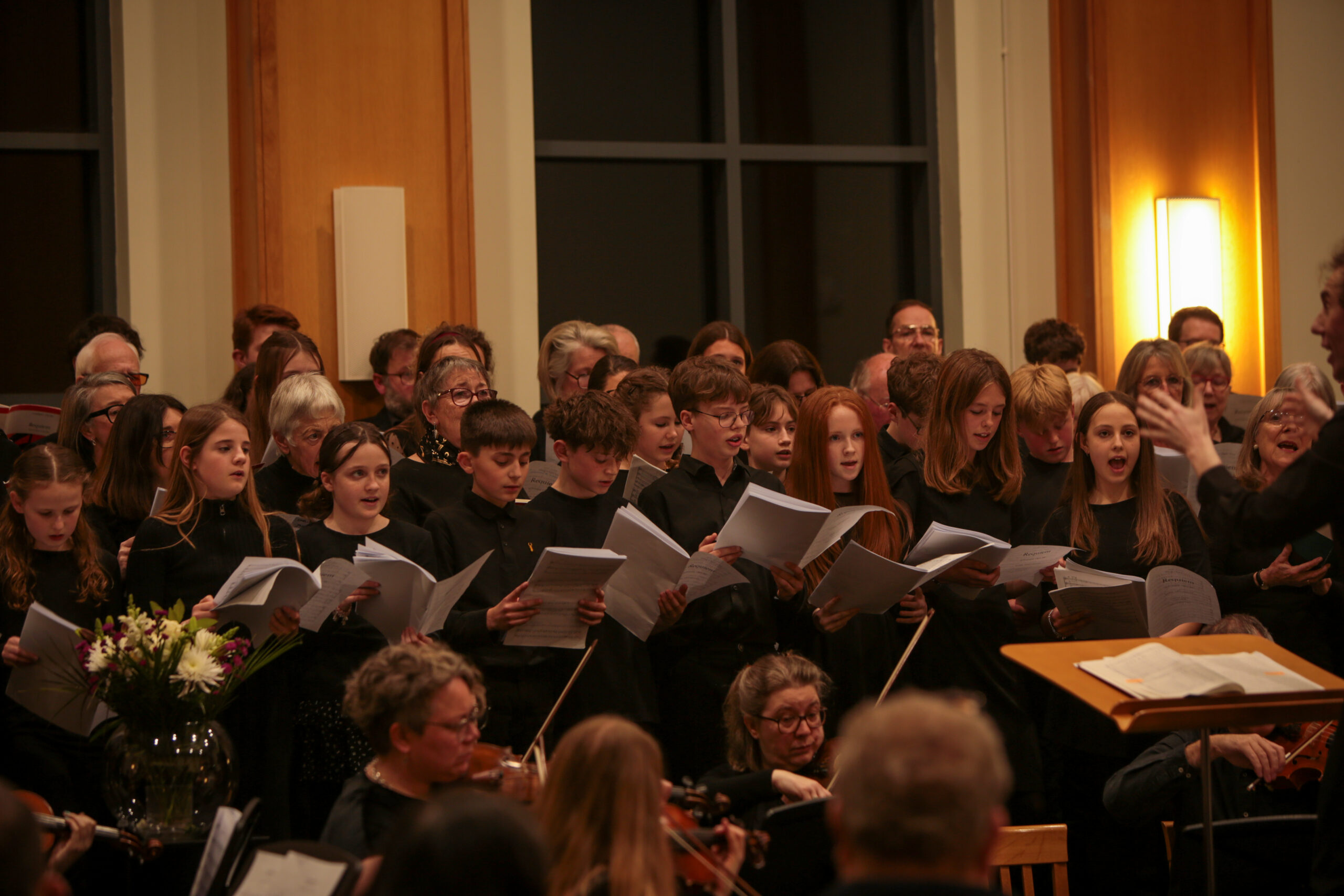
This image is a popup trigger.
It displays a divi library item called “Popup”.
To make the popup:
1) Visit Divi -> Divi Library -> add new
2) Select “Section” from the item type
3) Give it a name (and remember the name). In this case, the item is called “Popup”.
4) Create your popup in the same way that you create any divi section elsewhere on the site.
To attach the popup to an element (in this case, the image on the right):
1) Open the image properties
2) Select Advanced -> Visibility
3) Enable the “Use popup” toggle
4) Select “Layout” from the “Popup Type” box
5) Select the appropriate layout (in this case the item called “Popup”) from the “Popup (Divi Library)” drop down
6) Select your chosen trigger from the “Trigger On”) dropdown. Options are:
- On module click (you’d use this if you want to display a popup when someone directly interacts with something)
- On button click (you’d use this if you want to display a popup when someone directly interacts with a button that is displayed as part of a module)
- On image click (you’d use this if you want to display a popup when someone directly interacts with an image that is displayed as part of a module)
- On hyperlink click (you’d use this if you want to display a popup when someone directly interacts with a link that is displayed as part of a module – e.g., a link that is displayed in a paragraph of text)
- On ID click (you’d use this if you want to display a popup when someone clicks on an item with a specific CSS ID)
- On Class click (you’d use this if you want to display a popup when someone clicks on an item with a specific CSS Class)
- On page load (you’d use this to display a popup when someone visits a page
- On scroll (you’d use this to display a popup when someone has scrolled a defined %ge down the page)
- On exit intent (you’d use this to display a popup when someone begins to interact with the menu having visited the page)
I’ve selected “on page load”
You can control a number of other popup properties (width, position, load & unload animation, close control(s), overlay). I’ve left everyhing default in this example.
7) Save the module
8) Save the page
View the page – you should see the popup shortly after the page loads.